
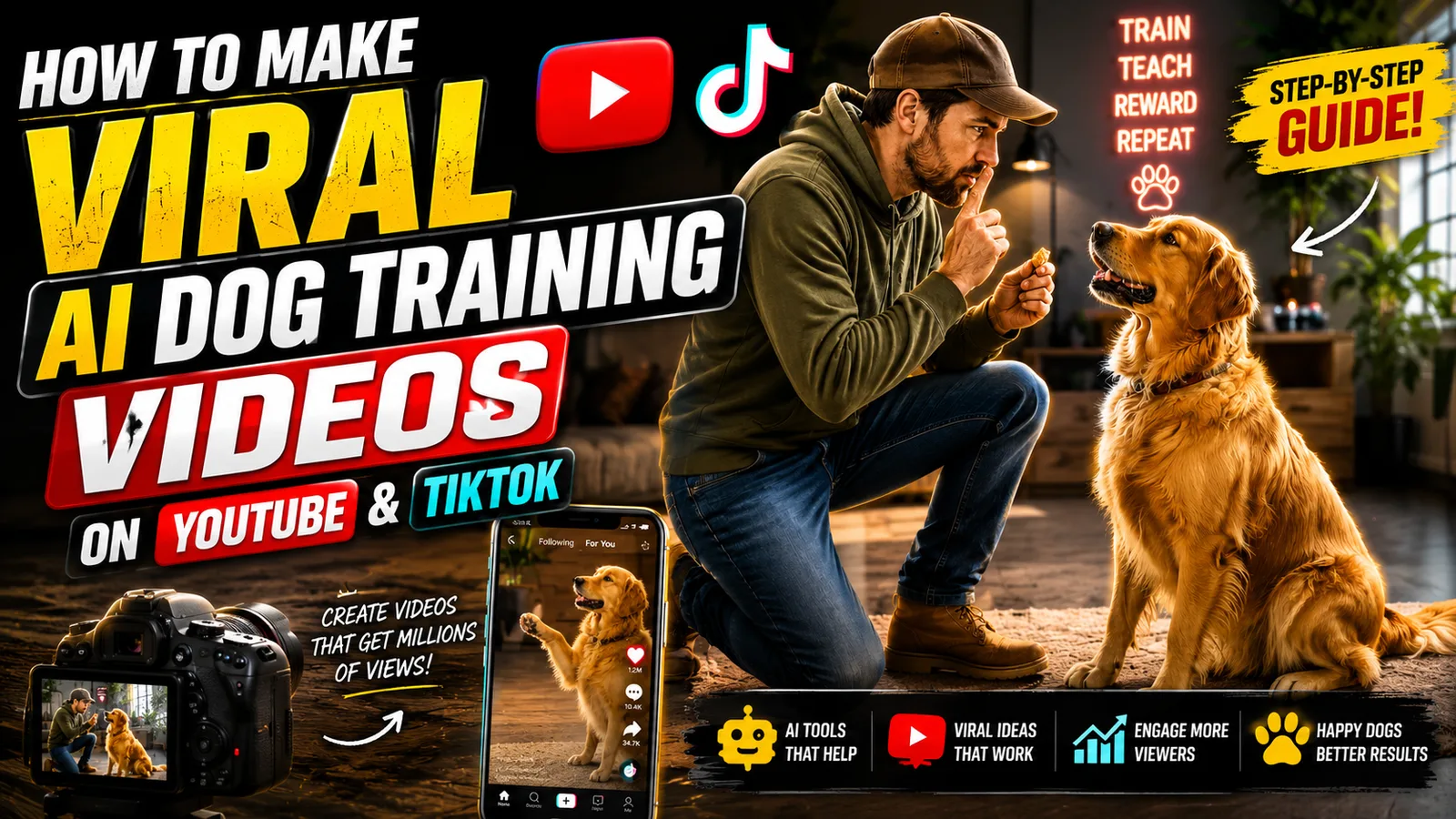
How to Make Viral AI Dog Training Videos on YouTube and TikTok
Why Pet Training Videos Dominate Social Media
FindPrompts
Master Prompt
Step 1: Create Your Consistent Trainer Character
The single most important decision you'll make before producing a single frame of content is establishing a consistent on-screen persona. This character will appear in every video on your channel. Viewers need to recognize your content instantly, and that recognition starts with a face they've seen before.

You have two options for building this character.

The first is uploading a photo of yourself into Google Flow and prompting it to transform your image into a stylized trainer. A prompt like "transform this person into a professional dog trainer with a calm, approachable expression, wearing a fitted training vest, standing against a clean outdoor background" gives the model enough direction to produce a usable result. Set the aspect ratio to 9:16 from the start, since vertical formats perform best on YouTube Shorts, TikTok, and Instagram Reels. Generate several variations and choose the one that looks most professional and consistent.

The second option is generating a completely fictional character from a text description if you'd prefer not to use your own likeness. This gives you total control over every visual detail — age, build, clothing style, skin tone — without needing a source photo.

Whichever route you take, save the final character image somewhere accessible. It will be attached to every scene prompt you generate going forward.

The reason this step cannot be skipped: a trainer who looks visually different from video to video registers subconsciously as low quality or untrustworthy, even if viewers can't articulate why. A single consistent character builds familiarity over time, and familiarity is what turns one-time viewers into subscribers.

Step 2: Establish Your Animal Character
The same logic that applies to your trainer applies to your animal. Pick one breed and one specific coat variation — a golden retriever with a light cream coat, for example — and commit to it. Generate a reference image of this animal in Google Flow and save it alongside your trainer character.

Both reference images will be attached to your scene prompts in subsequent steps, which is what maintains visual continuity across an entire video and across your entire channel. If your animal changes breed between videos, viewers won't connect the content to a single channel identity. One recognizable animal creates the impression of a continuous training journey, which encourages viewers to follow along and return.

Step 3: Generate Your Video Concept and Scene Structure
This is where your language model takes over most of the heavy lifting. Use a structured master prompt that first specifies the content category — dog training or cat training — and then generates a list of specific video ideas grounded in real search behavior and common pet owner problems. Topics like "teaching a dog to ring a bell when it needs to go outside" or "stopping excessive barking within five minutes" aren't chosen arbitrarily; they map directly to things pet owners are actively searching for.

Once you select a concept, prompt the model to generate a complete seven-scene breakdown. Each scene should contain a descriptive heading, a detailed image prompt, a motion prompt, voiceover narration text, and on-screen subtitle text. That level of structure means you're never staring at a blank page wondering what comes next.

Seven scenes at roughly six to eight seconds each produces a finished video between 45 and 60 seconds — long enough to deliver real value, short enough to hold attention all the way through. That duration sits in the sweet spot for Shorts and Reels performance.

One mistake that derails a lot of beginners: trying to cover multiple training techniques in a single video. One clear objective per video consistently outperforms content that rushes through several ideas. Narrow focus keeps watch time high, and high watch time is what earns recommendations.

Step 4: Generate Scene Images
Return to Google Flow with your seven scene image prompts ready. For each scene, paste the corresponding image prompt into the input field and attach both your trainer reference image and your animal reference image before generating. These attachments are what ensure the same character and animal appear consistently throughout the video rather than being regenerated from scratch with slight variations each time.

Set every image to 9:16 aspect ratio to match your final output format. Generate each scene and review it carefully before moving on. If a result looks off — the character's expression is wrong, the animal's positioning is awkward, the background doesn't match the scene's setting — adjust the prompt slightly and regenerate. The quality of your source images determines the ceiling of your finished video's quality. Don't settle for mediocre outputs just to move faster.

Step 5: Animate Your Scene Images Into Video Clips
With all seven scene images ready, open your AI video generation platform and work through each one. Upload the scene image, paste the corresponding motion prompt, set the aspect ratio to 9:16 and the duration to eight seconds, and generate the clip.

The motion prompt is doing more work here than it might appear. It's not just describing physical movement — it's directing camera behavior, defining how the trainer and animal interact within the frame, and establishing the energy of the scene. A prompt that says "the trainer kneels slowly, the dog approaches and sits, camera gradually zooms in on the dog's face" produces something that feels like deliberate direction. A prompt that just says "show the dog learning" produces something generic and flat.

Most free tiers on AI video platforms allow three to four clip generations per day per account. If your production schedule requires more output than that, spacing generation across multiple days or managing a small number of accounts can help keep costs at zero. The alternative is paid credits, which are reasonably priced on most platforms if the channel is generating revenue.

Step 6: Edit and Assemble the Final Video
Import all seven clips into your editor in sequence order. This assembly phase is where the raw material becomes a finished product, and the details you add here have an outsized effect on how professional the result feels.

Transitions between scenes should be subtle — simple cuts or short crossfades. Anything more elaborate pulls the viewer's attention to the edit itself rather than the content.

Sound design matters more than most first-time AI video creators expect. Adding ambient audio — outdoor background noise, a training clicker sound, the soft sound of a dog panting — makes AI-generated visuals feel grounded in reality. Viewers are surprisingly forgiving of visual imperfections when the audio feels natural and layered. They're far less forgiving of visuals that look fine but feel sonically empty.

Background music should sit well beneath the voiceover — around 15 percent of the total audio mix — and should be rhythmically understated. Something with a gentle, repetitive pattern works better than anything with a prominent melody that competes with the narration.

On-screen text from your scene subtitles should appear timed to match the voiceover. This serves two functions: it improves accessibility, and it keeps viewers engaged even if they're watching without sound, which a significant portion of short-form viewers do.

Watch the full assembled video before exporting. Identify any moment where your attention wanders and tighten it — trim a clip, swap a visual, or raise the music slightly to add energy.

Step 7: Export and Optimize for the Platform
Export at the highest quality your platform supports. For YouTube Shorts, that means 1080 by 1920 resolution. If your video generation tool produced 60fps clips, export at 60fps — the smoother motion noticeably improves perceived quality on mobile screens.

Write a title built around the specific training objective your video addresses. "How to Teach Your Dog to Ring a Bell in Under 10 Minutes" performs better than something vague like "Amazing Dog Training Tips" because it answers the viewer's question before they've even clicked. Add relevant tags, and create a thumbnail that communicates the video's value at a glance — a clear image of the training outcome, minimal text, and nothing cluttered.

Building a dog training channel with AI is a legitimate creative skill, not a shortcut. The workflow described here takes patience to learn and consistency to maintain. But once the system is in place — consistent characters established, prompt templates refined, editing process streamlined — the production time per video drops significantly. That efficiency is what allows serious creators in this space to publish regularly, build an audience steadily, and let the algorithm work in their favor over time.