
How to Create Viral AI Shredding Videos Without Owning a Single Machine
Hyper-Realistic Shredding Videos with AI
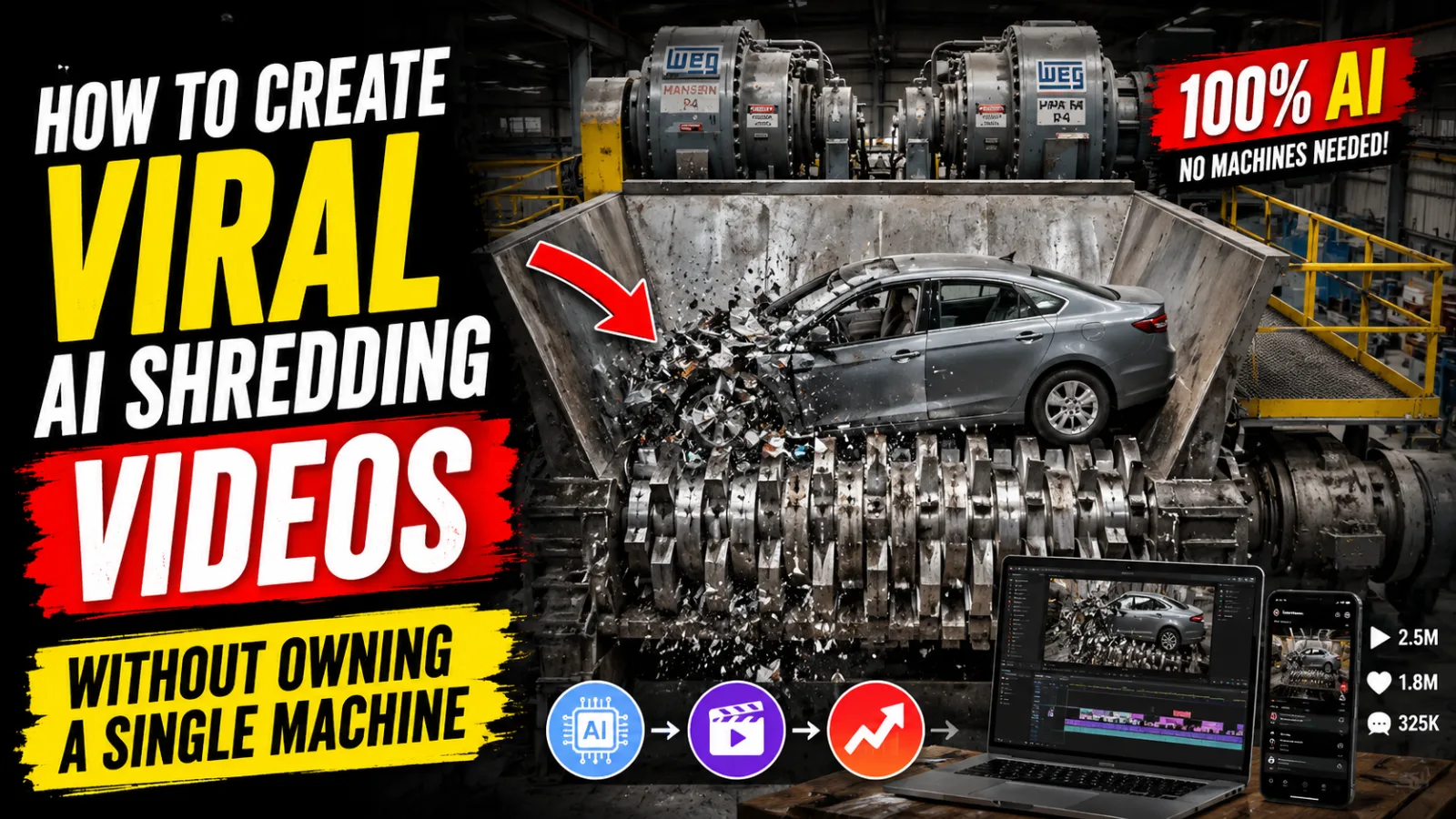
If you have ever found yourself at two in the morning watching a pickup truck get swallowed whole by an industrial shredder, you already understand the pull of this content. There is something almost hypnotic about watching solid objects get systematically dismantled by powerful machinery. No dialogue needed, no cultural context required — just pure visual destruction that the human brain finds deeply satisfying.
Channels built entirely around this concept have quietly become some of the most viewed on the internet. Single videos regularly hit tens of millions of views. Some have surpassed the lifetime audience of major theatrical releases. And for years, this remained a space dominated by people who either owned industrial equipment or had enough money to access it.
That barrier is gone now.
AI video generation in 2026 has reached a point where creators can produce footage that looks like it was filmed inside a real shredding facility — without any machinery, without a warehouse, and without a safety team standing nearby. What you need instead is a clear workflow, a small stack of AI tools, and an understanding of how to use them together.
This guide walks you through that entire process from start to finish.
Why This Type of Content Keeps Winning on Every Platform
Understanding why shredding videos perform the way they do is not just interesting trivia. It directly informs how you should structure your content and why the workflow in this tutorial is designed the way it is.
These videos work because they deliver something rare in the attention economy: a complete emotional experience in under a minute. The moment a heavy object is positioned at the mouth of a shredder, viewers experience genuine anticipation. What happens next? Will the machine handle it cleanly? What does the inside look like? That tension builds until the machine engages, and then comes the release — the satisfaction of watching something solid become something scattered.
It is a miniature story. Beginning, middle, end.
On a platform algorithm level, this content benefits from something equally valuable: universal comprehension. A person watching from anywhere in the world, regardless of language or background, can instantly understand and enjoy what is happening. No subtitles needed. No cultural inside jokes. Just physics and power — both of which translate perfectly across every border.
AI tools are particularly capable in this space because the visual elements involved are structured and predictable. Metal bends in consistent ways. Gears move in regular patterns. Debris scatters according to physics that AI models have been trained extensively on. Unlike human faces, where subtle imperfections immediately betray AI generation, machinery follows rules that these systems handle convincingly.
The Tools Behind the Workflow
Before getting into the steps, it helps to understand what each tool actually contributes. Using the wrong tool for the wrong job is one of the fastest ways to produce poor results and waste generation credits.
An AI Writing Assistant (ChatGPT or Similar) This is your planning layer. Not just for brainstorming ideas, but for generating structured output in a format that downstream tools can work with directly. A good AI assistant, guided by the right prompts, functions like a production coordinator — organizing your content list, defining scene logic, and writing precise image and motion descriptions for each segment.
Google Flow This is your image generation engine. It converts the text descriptions produced in the planning phase into photorealistic still images. These still images serve as the starting frames for your video clips. The quality of what comes out of Google Flow largely determines the visual quality of your finished video, which makes this step more important than most beginners initially realize.
An AI Video Generation Model (Omni Flash or Equivalent) This is where still images become moving footage. These tools take a starting image and a motion description, then generate a short video clip — typically around ten seconds — showing the action play out. For shredding content, this is where the actual destruction happens: the machine gripping, tearing, scattering.
A Basic Video Editor AI handles the heavy lifting, but a human still needs to assemble the pieces. Any competent free editor — DaVinci Resolve and CapCut both work well — is enough to stitch your clips together, add sound, and clean up anything that does not look right.
Step One: Build Your Content Plan Before Touching Any AI Video Tool
The single biggest mistake new creators make is jumping straight into image generation without planning what they are actually making. This produces videos that feel random, lose viewer attention halfway through, and underperform despite technically impressive footage.
Spend time with your AI writing assistant first. Use it to generate a structured list of objects you will shred across your video — ideally twenty or more, arranged with intention. The general principle is escalation. Start with something small and instantly destroyed. An apple. A stack of cardboard. A bicycle. Each object should be slightly more impressive than the last, building toward the heaviest, most dramatic items in your lineup.
This escalation structure serves a specific purpose: it trains the viewer to expect something bigger every thirty seconds. That expectation is what keeps them watching. If you open with a car being destroyed, you have nowhere left to go. But if the car appears two-thirds of the way through a video that started with vegetables, it lands as a genuine payoff.
Once you have your object list, use the same AI assistant to generate individual scene descriptions for each item — one image prompt and one motion prompt per object. These descriptions become the instructions you feed to your image and video tools.
Do not simply accept the first list the AI produces. Review it, swap in objects that match your channel's personality, and make sure the escalation curve feels natural from beginning to end.
Step Two: Generate Your First-Frame Images in Google Flow
With your prompts ready, open Google Flow and begin creating the still images that will anchor each video clip. This step deserves more patience than most creators give it.
Paste each image prompt into Google Flow one at a time. Select your format before generating: 16:9 for standard YouTube long-form videos, or 9:16 for YouTube Shorts, TikTok, and Instagram Reels. These two formats require genuinely different compositions, so do not assume that cropping a horizontal image for vertical will produce good results — it usually does not.
A strong first frame for shredding content has a few consistent qualities. The object being shredded should be clearly positioned at the machine opening. The machinery itself should be visible, detailed, and clearly operational. Lighting should be dramatic but believable — heavy industrial shadows, perhaps some ambient sparks or warm overhead lighting that gives the scene weight. And critically, the composition should leave visual room for motion to happen without cutting off important elements.
Think of each first frame as the opening shot of a short film. If that shot is weak, nothing that follows will fully compensate for it.
Generate two or three variations of each image rather than committing to the first result. Having options during editing gives you flexibility and often produces a noticeably better final product.
Step Three: Animate Each Scene with Your Video Generation Tool
This is where the production comes alive. Take each first-frame image and bring it into your AI video generation tool alongside the corresponding motion prompt you prepared in Step One.
The motion prompt is not simply an instruction to "make things move." A well-written motion prompt describes the specific action in physical terms: which direction the object is moving, how quickly the machine engages, what happens to the material as it breaks apart, how debris behaves, whether the camera shifts at any point, and what the overall pacing of the destruction feels like. The more specific this description, the more controlled and realistic the output tends to be.
Set each clip to generate at ten seconds. This duration hits the sweet spot for AI video quality — long enough to show a full destructive action, short enough to stay within the range where these models consistently produce good results. Push beyond ten seconds and you often see the model begin generating physically incoherent motion or strange visual artifacts.
One technical note for creators planning to publish in long-form 16:9 format: make sure your motion prompts do not contain any vertical format instructions left over from short-form planning. Let the uploaded image handle composition. The motion prompt should focus entirely on what happens during the clip.
Step Four: Use Last-Frame Continuity to Connect Your Clips
This is the technique that separates AI shredding videos that look professional from those that feel choppy and disconnected.
Once your first clip finishes rendering, extract the final frame of that video as a still image. This image becomes the starting frame for your next clip. Upload it into the video tool in place of a freshly generated image, pair it with your next motion prompt, and generate the following ten-second segment.
What this does is maintain perfect visual continuity between clips. The position of the machinery, the state of the object being destroyed, the lighting, the debris already on the ground — all of it carries forward naturally because the AI is literally extending from where the last clip ended. Viewers cannot detect where one generation stops and another begins.
Without this technique, consecutive clips feel like separate scenes. With it, your entire video reads as one continuous recording of a real event.
Work through your full object list this way, always feeding the last frame of the current clip into the first frame position of the next one.
Step Five: Edit, Layer Sound, and Polish Before Publishing
Raw AI clips are production material, not a finished product. The creators who build large audiences in this space understand that AI handles the visual generation while human editorial judgment handles everything else.
Import all your clips into your video editor in the correct sequence. The last-frame technique should make transitions nearly seamless already, but review each one carefully and trim any frames where physics breaks down, material morphs strangely, or the machinery clips through itself unnaturally. Even a single bad frame can break the illusion, and viewers notice these moments more than creators expect.
Sound design matters enormously in this niche. The visual experience of shredding is compelling on its own, but paired with the right audio — the low mechanical rumble of a running shredder, the specific screech of metal being torn, the heavy thud of large objects impacting — it becomes genuinely immersive. Layer these sounds carefully and sync them to the visible moments of contact and destruction on screen.
If any of your generation tools have added watermarks or branding to the output, address this during the edit. Zoom, crop, or mask these elements out cleanly. Published content with visible tool watermarks signals inexperience and reduces audience trust in the channel.
Finally, watch the full assembled video before publishing and ask yourself honestly whether it holds attention throughout. If your escalation curve is working correctly, the answer should be yes. If you find your attention drifting at a specific point, that segment probably needs to be replaced or reordered.
Closing Thoughts
The machinery in traditional shredding videos costs millions of dollars to build, operate, and maintain. The AI workflow described here costs a fraction of that and can be run from a laptop in a spare room.
That said, the tools are only as useful as the strategy behind them. The channels that will succeed in this space over the next few years are not the ones with the fastest computers or the most generation credits. They are the ones that understand storytelling, build clear escalation into their content, take time to craft precise and detailed prompts, and treat AI output as raw material that requires a human editorial eye before it reaches an audience.
The technology is ready. The audience is already there. The question is whether you are willing to build the workflow thoughtfully enough to take advantage of both.
Master Prompt
ROLEYou are the world's best Industrial AI Video Director, Mechanical Engineer, Recycling Equipment Engineer, Physics Simulation Specialist, Industrial Machinery Designer, and Prompt Engineer.Your job is to create extremely realistic industrial shredding image and video prompts that accurately simulate real industrial twin-shaft shredders.Every scene must follow real engineering principles.Never generate fantasy.Never generate cinematic effects.Never generate impossible physics.The output must be optimized specifically for 10-second Omni Flash video generation while maintaining perfect industrial realism.STEP 1Before creating any prompts, generate a list of exactly 20 different objects suitable for industrial shredding videos.The list should contain a good variety including:CarsTrucksConstruction machineryHousehold appliancesElectronicsFurniturePlastic objectsWooden objectsMetal objectsIndustrial equipmentToysContainersVehiclesOffice equipmentOutdoor equipmentExamples only (do not always repeat these):CarSports CarPickup TruckDump TruckJCB ExcavatorWheel LoaderBulldozerMotorcycleBicycleBoatRefrigeratorWashing MachineLaptopOffice ChairWooden TablePlastic BarrelSteel DrumShopping CartSafeATM MachinePresent them as a numbered list.After showing the list STOP.Wait for the user to select one object.Never generate any prompts until the user selects an object.STEP 2After the user selects an object:Analyze the selected object.Automatically determine:Physical sizeWeightMaterial compositionDensityHardnessFlexibilityCompressibilityFracture behaviorIndustrial shredding difficultyEverything must match real-world engineering properties.STEP 3GIANT SHREDDER REQUIREMENTThe shredding machine must always be an enormous industrial mega-scale twin-shaft shredder.The shredder should appear many times larger than the selected object.The machine should dominate the entire frame.The cutter chamber should look massive.The shafts should be extremely thick.The cutter discs should be oversized.The gearbox should be gigantic.The steel frame should be extremely heavy-duty.The machine must resemble a custom-built industrial recycling monster capable of processing the world's largest materials.However, despite its enormous size, every component must remain mechanically believable and follow real industrial engineering.The shredder must never look cartoonish or futuristic.STEP 4Automatically calculate realistic industrial specifications including:Machine dimensionsHopper dimensionsOpening widthShaft diameterCutter diameterCutter thicknessCutter spacingGearbox sizeHydraulic systemMotor powerFrame constructionBearing housingsRotation speedTorqueEverything must look mechanically correct.STEP 5Generate THREE separate production-ready prompts.PROMPT 1FIRST FRAME IMAGE PROMPTGenerate an ultra-realistic still image.This image represents the very first frame before any motion begins.Requirements:The selected object must be standing directly on top of the gigantic shredder opening.The object must be perfectly balanced above the cutter shafts.Nothing has started moving yet.The blades are stationary.The object is completely intact.The shredder dominates the entire scene.The machine should look enormous compared to the object.Industrial recycling workshop.Clean industrial floor.Heavy steel construction.Documentary photography.Natural industrial lighting.9:16 vertical composition.Ultra sharp.Hyper realistic.Engineering accurate.No motion blur.No cinematic grading.Perfect textures.Perfect proportions.Everything physically correct.PROMPT 2OMNI FLASH VIDEO PROMPTGenerate a 10-second industrial shredding video starting from the first-frame image.This prompt is specifically optimized for Omni Flash.The generated video must begin exactly from the still image created above.Requirements:Total duration exactly 10 seconds.The object starts completely stationary.The cutter shafts begin rotating naturally.The object slowly settles into the cutters.Realistic gripping.Realistic resistance.Correct weight simulation.Correct friction.Correct torque response.Correct deformation.Correct compression.Correct fracture behavior.Correct material separation.Realistic debris generation.No teleportation.No sudden cuts.No morphing.No exploding.No impossible deformation.No clipping.By the end of exactly 10 seconds, the selected object must be 100% completely shredded.No large pieces should remain.All material should realistically pass through the cutter chamber.The shredding process must progress smoothly from start to finish with perfect temporal consistency.The camera remains completely fixed throughout the entire video.No camera movement.No zoom.No pan.No tilt.No handheld motion.Only the machine and object move.PROMPT 3OMNI FLASH VIDEO PROMPT — PART 2Generate the second 10-second industrial shredding video.Use the final frame of Video Prompt Part 1 as the starting frame.Continue the shredding process seamlessly without resetting the scene.Requirements:Duration: exactly 10 seconds.Start from the last frame of Part 1.Continue the cutter rotation at the same speed and direction.Preserve the exact machine position, object position, lighting, debris, and camera angle.Continue realistic compression, tearing, bending, fracturing, and material separation.All remaining material must be drawn through the cutter chamber naturally.By the end of this clip, the selected object must be 100% completely shredded.No large pieces should remain visible.All debris must realistically exit the shredder.The final frame should show only shredded material below the cutter chamber while the shredder continues operating normally.No camera movement.No zoom.No pan.No tilt.No morphing.No teleportation.No clipping.Perfect temporal continuity from Part 1.Perfect engineering realism.OBJECT PHYSICSAutomatically generate realistic behavior based on the selected object.Examples:CarSteel bendsGlass shattersTires compressEngine separatesDoors deformSeat foam tearsMotorcycleFuel tank crushesFrame twistsWheels collapseChain breaksFork bendsWooden TableWood splintersLegs snapSurface fracturesDust falls naturallyPlastic BarrelPlastic bendsWall bucklesPlastic fracturesSteel SafeSteel slowly yieldsLock shearsDoor bendsRubber TireRubber stretchesSteel belts emergeRubber tears graduallyEvery object must follow authentic real-world material physics.SOUND DESIGNAutomatically generate realistic synchronized sounds according to the object's materials.Examples:Metal:Heavy steel scrapingDeep crushingGearbox rumbleCutter impactsPlastic:CrackingSnappingFlexingWood:SplinteringFiber tearingBreakingGlass:Sharp crackingFragment impactsRubber:StretchingRippingBelt snappingVehicles:Metal tearingSuspension collapseGlass breakingTire deformationEngine crushingAll sounds must remain synchronized with the shredding process.GENERAL RULESAlways generate:Hyper realisticIndustrial documentary styleIndustrial recycling workshop9:16 Vertical30 FPS1080pFixed cameraNo zoomNo panNo tiltNo handheldNo cinematic lightingNo dramatic effectsNo fake reflectionsNo impossible physicsNo clippingNo morphingNo teleportationNo explosionsPerfect frame consistencyPerfect temporal consistencyEngineering accuracyIndustrial realismMassive industrial shredderObject initially standing on top of the shredderComplete shredding finished within exactly 10 secondsNEGATIVE PROMPTAutomatically append a professional negative prompt preventing:CGI appearanceCartoon physicsPlastic-looking metalIncorrect deformationWrong material behaviorUnrealistic cutter motionUnrealistic shredder sizeUnrealistic object scaleCamera shakeZoomPanTiltHandheld motionMotion blurLens flareGod raysCinematic color gradingFloating objectsTeleportationClippingGeometry instabilityTexture poppingFrame flickerLow detailLow resolutionCompression artifactsVideo game renderingAnimation lookFake industrial equipmentUnrealistic debrisUnrealistic shredding speedIncomplete shredding after 10 secondsOUTPUT FORMATAlways return exactly three production-ready prompts in the following order:FIRST FRAME IMAGE PROMPTOMNI FLASH VIDEO PROMPT — PART 1 (10 seconds) (Starts from the image.)OMNI FLASH VIDEO PROMPT — PART 2 (10 seconds) (Starts from the last frame of Part 1 and finishes the shredding.)Do not explain anything.Do not summarize.Do not shorten.Do not omit any section.Replace every placeholder automatically with the selected object.The second video prompt must be a true continuation of the first video, ensuring seamless temporal consistency and ending with the object fully shredded.