If you've ever watched a Tom & Jerry cartoon and thought "I wish I could make something like that" — good news. You actually can now, and you don't need animation school, expensive software, or a production team. Free AI tools have genuinely flattened the playing field, and creators all over the world are building cartoon channels from scratch using nothing but a laptop and the right workflow.
This guide gives you a complete, structured process — from generating your first idea all the way to publishing a finished cartoon video. More importantly, it explains the reasoning behind each step so you understand what you're doing and why it works, not just how to copy a prompt.
Why Tom & Jerry–Style Content Works So Well Online
Before jumping into tools and steps, it's worth understanding why this particular style of content performs so consistently across YouTube, TikTok, and Instagram.
Tom & Jerry–style cartoons work because they rely on visual comedy rather than dialogue. The humor is universal — chases, traps, reversals, and exaggerated reactions land with audiences regardless of language or age. That universality means your content can reach a global audience without needing dubbing or subtitles.
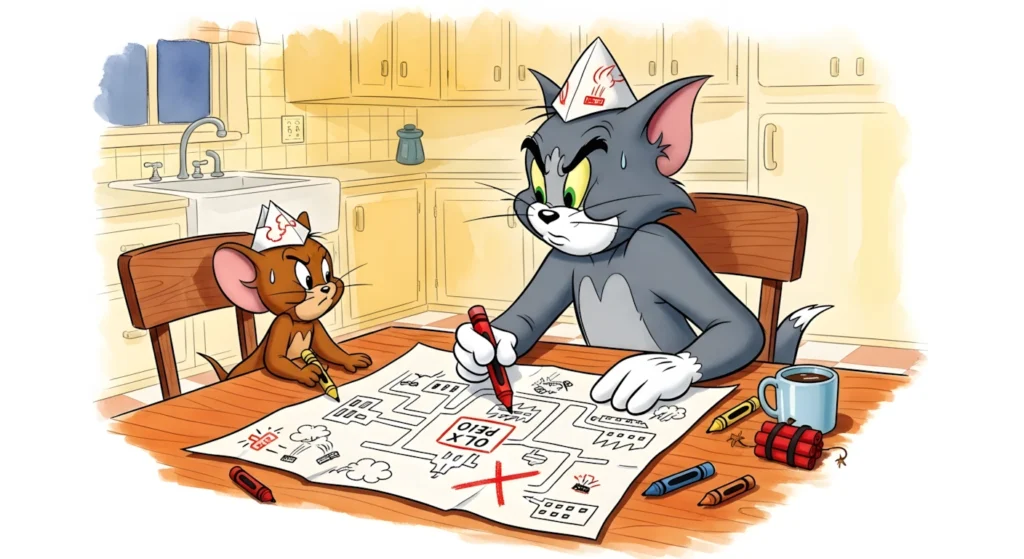
The format is also naturally fast-paced, which keeps watch time high. Every few seconds something changes — a new location, a new gag, a new reaction. Platforms reward that kind of viewer retention with more reach, which is exactly why this style of content tends to grow quickly once a channel finds its rhythm.
And practically speaking, cartoon content avoids the copyright and privacy issues that come with using real footage or real people. Everything is original, everything is owned by you, and everything is safe to monetize.
Free AI Tools You Will Use
Here is every tool in this workflow, all completely free:
- Google Gemini — For writing titles, building scene-by-scene storyboards, and generating image and motion prompts
- Google Flow — Google's AI video generation tool, built for creating short animated and cinematic clips from text prompts
- Google ImageFX — For generating high-quality cartoon-style images from your written prompts
- CapCut — For assembling all your clips, adding captions, transitions, and sound
- YouTube Audio Library — For royalty-free background music and sound effects that won't trigger copyright claims
No subscriptions, no trials, no hidden costs. Everything listed above is accessible with a free Google account.
Why This Workflow Is Structured the Way It Is
A lot of beginners make the mistake of jumping straight into image generation without planning the story first. The result is a collection of unrelated visuals that don't flow together as a video.
This workflow solves that problem by following a deliberate four-stage structure:
- Direction first — You decide the creative concept before anything else
- Story second — You build a complete scene-by-scene breakdown before generating any visuals
- Prompts third — You convert your story into AI-ready instructions for images and motion
- Production last — You generate, animate, and assemble the final video
Each stage feeds directly into the next. When you follow this order, your cartoon has consistent characters, a logical story arc, and a visual style that stays locked in from the first scene to the last.
Step-by-Step Tutorial
Step 1: Generate Your Video Title and Concept
Open Google Gemini and start by generating title ideas. The title isn't just a label — it defines the entire episode. A strong title tells you who the characters are, what the conflict is, and what kind of humor to expect. That clarity guides every creative decision that follows.
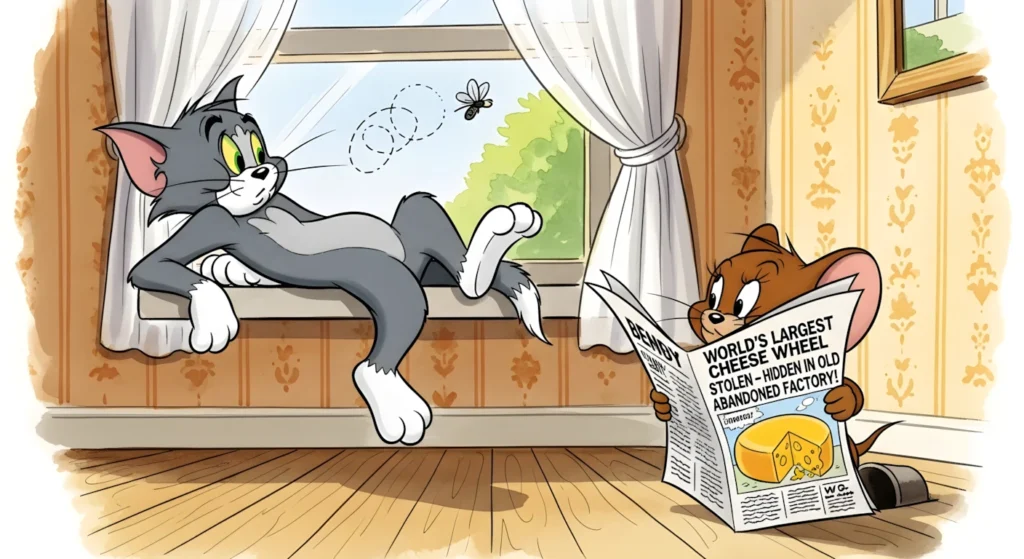
Use a prompt like this:
"Generate 15 funny and engaging episode titles for a Tom and Jerry–style cartoon series. Each title should suggest a clear chase or conflict scenario, use playful language, and feel like something a child or family audience would click on immediately."
Review the list and pick the title that excites you most. The best title is the one where you can already picture the scenes in your head.
Once you have your title, ask Gemini to give you a one-paragraph episode concept — the basic premise, who wants what, what goes wrong, and how it ends. This becomes the creative brief for your entire storyboard.
Step 2: Build a 60-Scene Storyboard
This is the most important step in the entire process. Your storyboard is the blueprint — everything else is built from it.
Ask Google Gemini to generate a full 60-scene breakdown based on your chosen title and concept. Use a prompt structured like this:
"Based on this episode concept: [paste your concept here], write a 60-scene storyboard for a Tom and Jerry–style cartoon. For each scene, include: the location, what the cat character is doing, what the mouse character is doing, the action or gag that occurs, and the emotional tone of the scene. Keep scenes short and punchy — each one should represent about 3 to 5 seconds of screen time."
What you'll get back is a complete episode broken into individual moments. Read through it carefully and edit anything that feels repetitive, slow, or out of sequence. You're the director here — Gemini gives you the raw material, but your judgment shapes the final story.
A 60-scene storyboard at 3 to 5 seconds per scene gives you a finished video of roughly 3 to 5 minutes, which is the ideal length for cartoon content on YouTube.
Step 3: Generate Image Prompts for Every Scene
Now take your storyboard and convert each scene into a detailed image generation prompt. This step is what separates professional-looking AI cartoons from messy, inconsistent ones.
Go back to Google Gemini and use a prompt like this:
"Convert the following 60 storyboard scenes into detailed image generation prompts. Each prompt should specify: the cartoon art style (classic hand-drawn 2D animation, bright colors, expressive characters), the background setting, the characters' positions and expressions, the key action happening, and the lighting or mood. Keep each prompt between 40 and 60 words."
The most important thing to include in every single prompt is a consistent style description. Something like:
"Classic 2D cartoon animation style, vibrant colors, black outlines, expressive exaggerated facial features, clean backgrounds, vintage Saturday morning cartoon aesthetic"
This style anchor, repeated in every prompt, is what keeps your characters looking like the same characters across all 60 scenes. Without it, AI image tools tend to drift — the cat looks different in scene 12 than it did in scene 3, and the whole cartoon loses its visual coherence.
Step 4: Generate Cartoon Images Using Google ImageFX
Open Google ImageFX at labs.google and paste your image prompts one by one. ImageFX is Google's AI image generation tool, and it handles cartoon and illustrated styles particularly well.
For each scene, generate two or three variations and pick the one that best matches your storyboard vision. Look for:
- Character expressions that match the emotional tone of the scene
- Background clarity that doesn't compete with the characters
- Consistent proportions and color palette across scenes
Save every image in order using a simple naming system — Scene01, Scene02, Scene03 — so your editing process stays organized. Disorganized assets are one of the most common reasons beginners waste hours in the editing stage.
If a particular scene doesn't generate well, rewrite the prompt to be more specific. Add details like "extreme close-up on the cat's shocked face" or "wide shot showing the full kitchen with the mouse hiding under the refrigerator." Specificity almost always improves results.
Step 5: Animate Your Images Using Google Flow
This is where your still images become motion. Google Flow is Google DeepMind's AI video generation tool that can take a text prompt — or in some modes, an image plus a prompt — and generate short animated clips.
For each scene, write a motion prompt based on your storyboard description. Keep motion prompts focused on a single action:
"The cat slides across a wet kitchen floor, arms spinning, eyes wide with panic, crashing into the cabinet at the end. Classic cartoon physics, smooth exaggerated motion."
Generate each clip at 3 to 5 seconds. Shorter clips give you more control in the editing stage and are easier for AI tools to render consistently. Like with images, generate a couple of variations per scene and select the best one.
Export all your clips in order and store them in the same organized folder as your images.
Step 6: Assemble the Video in CapCut
Open CapCut and create a new project. Import all your animated clips in scene order and lay them out on the timeline.
Work through these elements one at a time:
Timing: Watch the full rough cut and trim or extend clips where the pacing feels off. Comedy timing in cartoons is everything — a beat held one second too long kills a joke, and a cut that comes too early loses the payoff.
Transitions: Keep transitions simple. Fast cuts and quick wipes suit the slapstick energy of this style. Avoid slow fades or cinematic transitions — they kill the momentum.
Sound effects: This is what makes cartoon content feel genuinely alive. Go to the YouTube Audio Library and download classic cartoon sound effects — boing sounds, crash effects, whistle slides, running footsteps. Layer these onto your timeline timed precisely to the action in each clip. Good sound design can make even average visuals feel professional.
Background music: Choose a light, playful instrumental track from the YouTube Audio Library. Keep the volume low enough that your sound effects cut through clearly on top of it.
Captions: CapCut's auto-caption feature works well if your video has any text-based narration. For purely visual cartoon content, you can skip captions or add occasional on-screen text gags for extra humor.
Step 7: Export and Optimize for Publishing
Export your finished video from CapCut at 1080p. Before uploading, prepare these elements:
Thumbnail: Create a bold, expressive thumbnail using Google ImageFX. Generate an image of your main characters mid-action — the most dramatic or funniest moment from the episode — with a simple, high-contrast background. Add minimal text if any. Cartoon thumbnails perform best when the character expression does all the communicating.
Title: Use the episode title you generated in Step 1 and optimize it slightly for search. Include terms like "cartoon," "funny," "animation," or the specific scenario from your episode.
Description: Write two to three sentences summarizing the episode, then add a list of relevant keywords naturally worked into the text.
Tags: Include a mix of broad tags (cartoon, animation, funny cartoon) and specific ones (Tom and Jerry style, AI cartoon, slapstick comedy).
Upload as public, add to a playlist if you have one, and publish.
Common Mistakes to Avoid
Skipping the storyboard: Jumping straight to image generation without a planned story almost always results in disconnected visuals that don't form a coherent episode.
Inconsistent style prompts: Forgetting to include your style anchor in every image prompt is the fastest way to end up with characters that look different in every scene.
Overloading scenes: Trying to fit too much action into a single clip confuses AI generation tools. One clear action per scene, described specifically, produces far better results than complex multi-action prompts.
Neglecting sound: Sound effects are not optional in cartoon content. Without them, even great visuals feel flat and unfinished.
Final Thoughts
The barrier to creating cartoon content has never been lower. A workflow that would have required a team of animators, a recording studio, and months of production time a few years ago can now be completed by one person in a weekend using free tools.
What separates the creators who build real audiences from those who post once and give up is consistency. Your first cartoon won't be perfect — it doesn't need to be. What matters is that you finish it, publish it, learn from it, and make the next one better.
Start with one episode. Follow this process exactly. Then adjust, experiment, and develop your own style as you go.
The tools are free. The audience is waiting. The only thing left is to start.