
Videos Like Zack D. Films With AI
How to Create AI-Powered Educational Short Videos: A Complete Beginner's Workflow
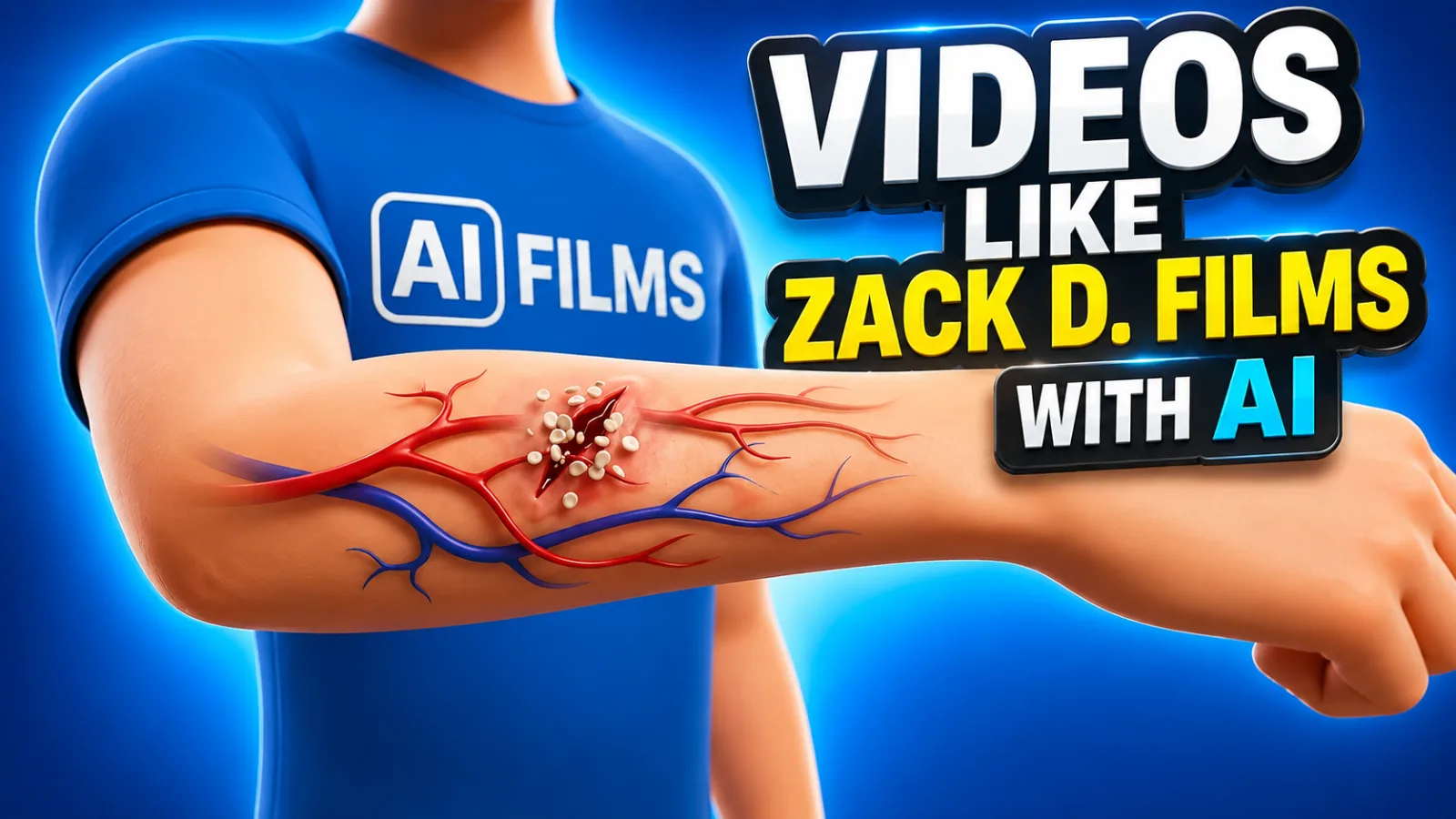
If you have spent any time on YouTube Shorts or TikTok lately, you have probably noticed a surge of fast-paced educational videos explaining things like how your body fights off infection, what happens inside your brain when you panic, or how food breaks down in your stomach. These videos pull you in instantly, explain something fascinating in under a minute, and leave you wanting to learn more.
What many viewers do not realize is that a growing number of these videos are now being made with the help of artificial intelligence tools — and you do not need a film production budget or an animation studio to create them yourself.
This guide walks you through a complete, beginner-friendly workflow for producing short educational videos using AI, from the moment you choose a topic all the way to the final edit.
Why Short Educational Videos Work So Well
Before diving into the process, it helps to understand why this type of content performs so consistently well on short-form platforms.
The answer comes down to two things: curiosity and quick payoff.
People are naturally drawn to questions they have not thought to ask yet. A title like "What actually happens inside your body the moment you get a cut?" creates instant curiosity. You may not have been thinking about it before, but now you want to know. And because the video promises to answer that question in under a minute, there is very little resistance to clicking.
There is also a visualization factor. Some topics are genuinely hard to understand through words alone. Describing how blood platelets cluster around a wound in text is fine, but seeing a visual representation of the process makes it immediately clearer. This is exactly where AI tools can add tremendous value — they allow creators to build visual storytelling around concepts that would otherwise require expensive, custom animation to explain.
That said, educational accuracy matters enormously. AI tools assist with visuals and scripting, but the responsibility to fact-check and present truthful information still rests entirely with the creator.
The Tools You Will Need
You do not need to commit to a specific set of software. The tools in this workflow can be swapped out for alternatives that serve the same purpose. The important thing is understanding what each category of tool does.
A language model for planning and scripting. Tools like ChatGPT can help you brainstorm video ideas, write narration scripts, break content into scenes, and generate visual prompts. The real advantage here is organization — running your entire production plan through a structured workflow rather than asking random one-off questions.
An AI image and video generation tool. Platforms capable of generating consistent imagery from text prompts will handle the visual side of your production. The key concept to understand is not which platform you use, but how to maintain visual consistency from scene to scene.
A text-to-speech tool. AI voice generators can convert your written narration into a natural-sounding voiceover. Clarity matters more than speed — always prioritize a voice that viewers can actually understand.
A video editor. This is where all the pieces come together. Any editor you are comfortable with will work. The editing stage is what transforms a collection of AI-generated clips into an actual video.
Step One: Choose a Content Category You Can Stick With
Your first decision is choosing a topic area — not just for one video, but for an entire channel.
This matters more than most beginners realize. A YouTube channel is not built on a single video. You need to be able to generate dozens, even hundreds, of ideas within your chosen space. If you pick a category purely because something is trending right now, you may run out of ideas within a few weeks.
Strong content categories for this format include the human body and biology, food science and chemistry, survival and danger scenarios, natural phenomena, and technology and engineering.
The human body is a particularly rich area for beginners. The processes happening inside us at any given moment — the immune response, the digestive system, the nervous system — are genuinely fascinating to most people, and they lend themselves naturally to visual explanation.
Step Two: Generate and Select a Video Idea
Once you have a category, ask your AI tool to generate multiple video ideas within that space. Do not settle for the first batch if nothing excites you. Request more options until you find an idea that feels genuinely interesting.
The best ideas for this format share a few qualities. They open with a question that almost anyone would find relatable. They have a clear, logical progression — a beginning, a middle, and an end. And they are visually explainable, meaning there are actual things to show, not just abstract concepts to describe.
For example, "What happens inside your body when you get a cut?" checks all three boxes. The question is universally relatable, the healing process has a clear sequence of stages, and each stage can be visualized meaningfully.
Once you have selected your idea, also decide on your target video length. For most short-form platforms, somewhere between 30 and 45 seconds is a practical target. Avoid the temptation to artificially stretch a simple idea, and equally avoid compressing a detailed process so much that viewers cannot follow along.
Step Three: Build a Visual Identity
One detail that separates consistent channels from one-off experiments is visual identity.
Before generating any images, decide on consistent visual elements that will appear throughout all your videos. This could be a recurring character with a recognizable appearance, a consistent color palette, a specific visual style, or a recurring opening format.
The goal is to make your content immediately recognizable to returning viewers — not through heavy watermarking, but through deliberate creative choices that become associated with your channel over time.
Develop your own original look. Do not borrow from other creators.
Step Four: Write and Review Your Narration Script
With your idea and visual identity established, the next step is writing the narration script. If you are using an AI language model, you can generate a draft quickly — but never skip the review stage.
AI-generated scripts frequently contain awkward phrasing, repetitive sentences, and occasionally inaccurate information. Read every word before recording anything. Rewrite anything that sounds unnatural when spoken aloud.
A strong script for a short educational video follows a specific structure. It opens with a hook that creates immediate movement — something that makes the viewer feel like the story has already started. It explains the process clearly and efficiently, without detours or unnecessary context. And it ends naturally, without a long-winded conclusion.
Compare these two openings:
"In today's video, we are going to take a look at what happens when someone experiences a minor skin injury."
Versus:
"The second your skin breaks open, your body launches an emergency response you never had to ask for."
The second opening is active. Something is already happening.
Step Five: Divide the Script Into Scenes
After finalizing the narration, divide it into individual scenes — each one corresponding to a specific moment or stage in the explanation.
For a 40-second video about the body's response to a cut, you might end up with seven scenes: the injury occurring, the initial emergency response, the movement of blood components, the wound beginning to close, the bleeding slowing, and new tissue starting to form.
Think of each scene as a chapter. Every chapter should move the story forward. A viewer who skips any scene should feel like they missed something important.
Step Six: Generate and Refine Your Visual Prompts
For each scene, create a structured image prompt that describes the character, the action, the educational visualization happening, the camera angle, and the overall visual style.
The more specific and consistent your prompts are, the easier it will be to maintain a coherent look across all your scenes. Repeat key character details in every prompt so your image generation tool understands that the same character should appear throughout.
When generating your first scene, take your time evaluating the result before moving on. Check that the character looks right, the composition is clear, and the visual matches what the narration is describing. The quality of your first image can set the tone for everything that follows.
For each subsequent scene, use the previous image as a visual reference when your tool supports it. This is the most reliable way to maintain character and style consistency across scenes. Generating each image in isolation is one of the most common beginner mistakes and results in noticeable visual inconsistencies — different clothing, different facial features, different proportions.
Step Seven: Generate Your Voiceover
Copy your finalized narration into your AI voice tool and select a voice that fits the tone of your content. Educational videos generally work best with voices that sound confident and clear without being stiff or robotic.
Before downloading anything, listen to the entire voiceover carefully. Check every sentence for mispronunciations or unnatural pauses. If something sounds off, rewrite the relevant section of the script and regenerate only that portion.
Step Eight: Animate Each Scene
With your images and voiceover ready, the next step is converting your static images into short video clips.
For each scene, write a motion prompt that describes what should move and how. Should the camera slowly push forward? Should particles in the blood move toward the injury? Should the character react to something?
A great image does not become a great video clip on its own. The animation needs direction. Vague or missing motion prompts typically produce generic movement that does not serve the story.
After generating each clip, watch it carefully before moving on. Look for unnatural distortions, character changes, broken continuity, or unwanted objects appearing in the frame. If a clip has significant problems, regenerate it rather than hoping the editing process will hide the issues. Poor source material has limits that even skilled editing cannot fully overcome.
Step Nine: Edit Everything Together
Import your video clips, voiceover, and any optional background music into your editor. Start by placing the voiceover on the timeline, then align each visual scene to the corresponding narration.
Cut unnecessary pauses. Add transitions only where they genuinely improve the viewing experience — not between every single clip by default. Simple cuts are often more effective than busy transition effects. Excessive transitions can pull attention away from the content rather than enhancing it.
Adjust audio levels so the voiceover is clearly audible above any music. Consider adding subtitles, which can significantly improve accessibility and retention, particularly on mobile devices where many viewers watch without sound.
Export your final video in the appropriate format and aspect ratio for your target platform — vertical 9:16 for most short-form platforms.
A Final Note on Quality and Responsibility
AI tools can dramatically reduce the time and cost involved in producing educational video content. But they do not eliminate the need for good ideas, careful storytelling, accurate information, and consistent effort.
The creators who build lasting channels in this space are the ones who use AI as a production assistant, not as a replacement for creative thinking. The tool handles the heavy lifting; the judgment still belongs to you.
Start with one idea, build the workflow from start to finish, and learn from each video you make. The process becomes faster and more intuitive with every iteration.