
How to Create Hollywood VFX Behind-the-Scenes Videos Using Free AI Tools
Hollywood VFX Behind-the-Scenes Videos
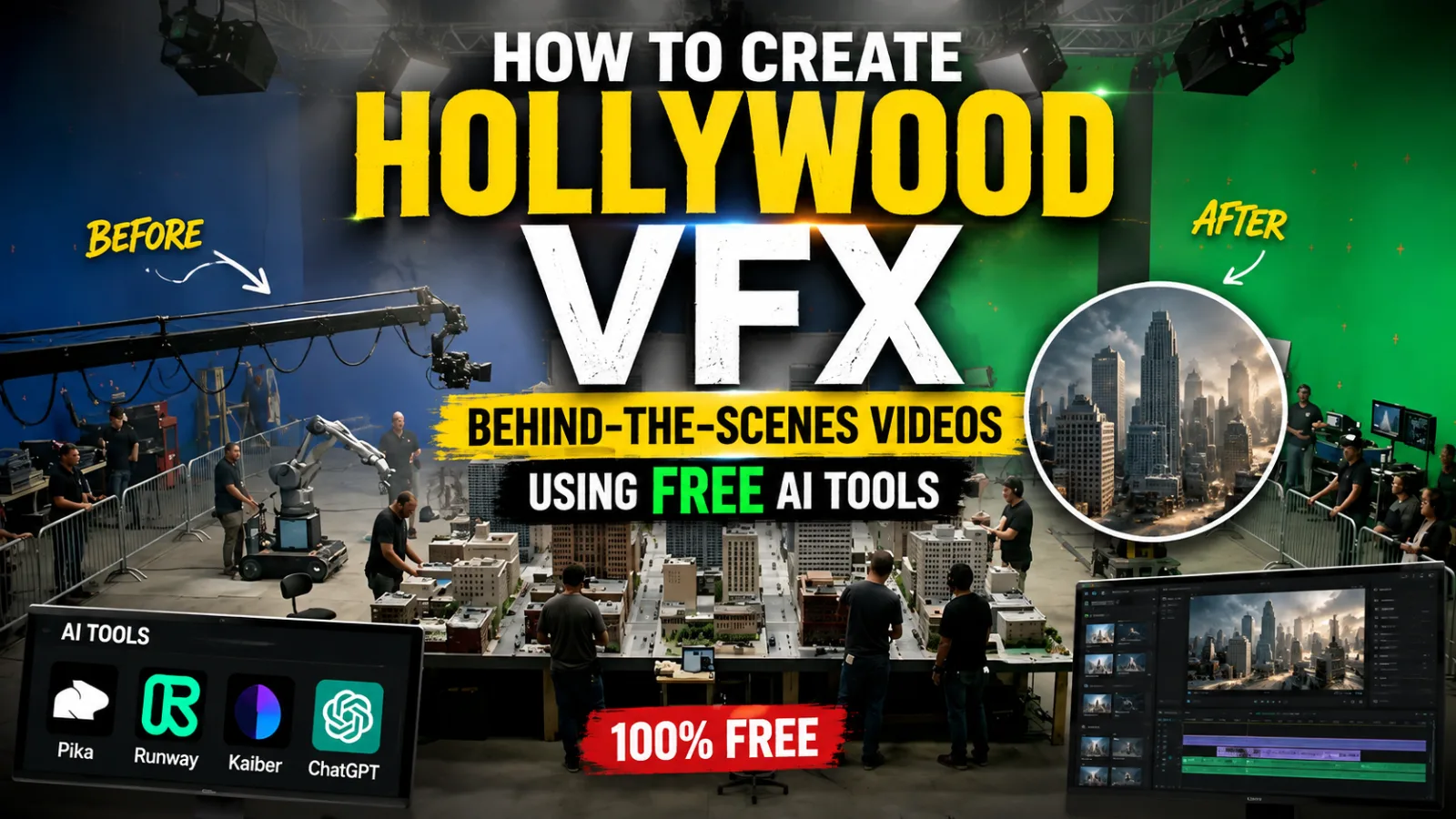
Hollywood visual effects have always felt like magic. One moment you're watching an actor standing on a soundstage, and the next they're surrounded by an alien world, a collapsing building, or a creature that doesn't exist in real life. Behind-the-scenes VFX content pulls back the curtain on that magic — and right now, it is one of the fastest-growing content categories on YouTube, TikTok, and Instagram.
Here is what makes this even more exciting for independent creators: you don't need to work at Industrial Light & Magic or have access to a Hollywood production to create compelling VFX behind-the-scenes content. Free AI tools have made it possible to simulate, recreate, and explain the VFX process in ways that look genuinely professional — and audiences are absolutely hungry for it.
This guide gives you a complete workflow for creating Hollywood VFX behind-the-scenes videos from concept to published content, using nothing but free tools and a structured process.
Why VFX Behind-the-Scenes Content Performs So Well
Understanding why this content category works helps you make better creative decisions throughout the production process.
VFX behind-the-scenes content sits at a fascinating intersection of education and entertainment. Viewers watch because they want to understand how their favorite films and shows were made. That curiosity is powerful — it drives longer watch times, higher engagement, and strong share rates because people genuinely want to pass along something that feels like insider knowledge.
The format also benefits from the massive existing audience around blockbuster films. When a major movie releases, search traffic around that film spikes enormously. VFX breakdown content that connects to those releases rides that wave of interest and captures viewers who are already primed and excited.
There is also a creator skill angle that keeps audiences coming back. Viewers who are aspiring filmmakers, students, or hobbyist creators watch VFX content not just for entertainment but to learn techniques they can apply themselves. That educational value builds loyal, returning audiences rather than one-time viewers — exactly the kind of channel growth that compounds over time.
Free AI Tools You Will Use
Every tool in this workflow is completely free to access:
- Google Gemini — For scripting, scene planning, voiceover narration writing, and generating detailed visual prompts
- Google Flow — For generating short AI video clips that simulate VFX processes, green screen environments, and cinematic shots
- Google ImageFX — For creating high-quality still visuals showing VFX breakdowns, before-and-after comparisons, and concept art style imagery
- CapCut — For assembling your full video, adding text overlays, transitions, captions, and sound design
- YouTube Audio Library — For cinematic background music and atmospheric sound effects that match the dramatic tone of VFX content
No paid subscriptions required. A free Google account gives you access to Gemini, Flow, and ImageFX. CapCut and the YouTube Audio Library are both free without limitations for the purposes of this workflow.
Why This Workflow Is Built the Way It Is
VFX behind-the-scenes content has a specific structure that audiences expect and respond to. Unlike pure entertainment content where anything goes, educational breakdown videos need to follow a logical progression — otherwise viewers get lost and disengage.
This workflow follows a four-stage system that mirrors how professional documentary and educational content is actually produced:
- Concept and angle — You decide exactly what aspect of VFX you are covering and from what perspective
- Script and structure — You build a complete narrated breakdown before touching any visual tool
- Visual production — You generate images and video clips that illustrate each point in your script
- Assembly and publishing — You edit everything into a polished final video optimized for your target platform
Following this order keeps your content focused, your visuals purposeful, and your final video genuinely informative rather than just visually impressive without substance.
Step-by-Step Tutorial
Step 1: Choose Your VFX Topic and Angle
The first decision shapes everything that follows. VFX is an enormous subject — you need to narrow it down to a specific topic that is both searchable and manageable to cover in a single video.
Strong VFX behind-the-scenes topic angles include:
- How a specific type of effect was created (destruction sequences, creature animation, digital environments)
- The evolution of a VFX technique over decades (how explosions went from practical to digital)
- Before and after VFX breakdowns showing raw footage versus finished shots
- How green screen technology works in a real production environment
- The role of specific software and techniques like motion capture, compositing, or fluid simulation
Open Google Gemini and generate topic ideas with a prompt like this:
"Generate 15 engaging YouTube video topic ideas for a channel about Hollywood VFX behind-the-scenes content. Each topic should be specific enough to cover in one 10 to 15 minute video, educational in nature, and appeal to both film fans and aspiring filmmakers. Include a mix of technique breakdowns, historical evolution topics, and modern blockbuster VFX analysis."
Pick the topic that genuinely interests you most. Authentic enthusiasm comes through in narration and keeps your content from sounding like a Wikipedia article read aloud.
Once you have your topic, ask Gemini to give you a focused angle — a specific argument or revelation your video will build toward. The best educational content doesn't just explain what something is; it reveals something the audience didn't know and makes them feel smarter for watching.
Step 2: Write Your Script with Google Gemini
A strong script is the backbone of any successful educational video. Unlike cartoon content where visuals carry most of the storytelling weight, VFX behind-the-scenes videos live and die on the quality of their narration.
Ask Google Gemini to write a full script using a prompt structured like this:
"Write a complete YouTube video script about [your chosen topic]. The video should be approximately 12 minutes long when narrated at a conversational pace. Structure the script with: a strong hook in the first 30 seconds that poses a surprising question or reveals a counterintuitive fact, a brief overview of what the video will cover, four to five main sections each explaining a specific aspect of the topic, visual cue notes in brackets throughout indicating what the viewer should be seeing on screen, and a closing section that summarizes the key takeaways and encourages viewers to engage. Write in a conversational, enthusiastic tone — like an expert friend explaining something fascinating, not a textbook."
Read through the full script carefully when Gemini delivers it. Edit aggressively — remove anything that feels dry, overly technical without explanation, or padded. Every sentence in your script should either teach something, surprise the viewer, or build momentum toward the next point.
Pay special attention to the opening 45 seconds. This is where most viewers decide whether to keep watching or scroll away. Your hook needs to pose a question compelling enough that leaving without the answer feels genuinely unsatisfying.
A finished script for a 12 to 15 minute video typically runs between 1,800 and 2,200 words of narration. Use this as your target.
Step 3: Build Your Visual Shot List
Once your script is finalized, go through it scene by scene and build a shot list — a detailed breakdown of exactly what visual needs to appear on screen during each section of narration.
This is a step that many beginners skip, and it is why their videos end up feeling disconnected — the narration says one thing while random visuals play that have nothing to do with it. In professional video production this is called B-roll planning, and it is what makes educational content genuinely clear and watchable.
Ask Google Gemini to help you build this list:
"Based on the following script, create a detailed visual shot list. For each section of narration, describe exactly what type of visual should appear on screen — whether that is a diagram, a simulated VFX environment, a before-and-after comparison image, an animated sequence, or a text overlay. Be specific about composition, style, and what information the visual needs to communicate."
A typical 12 to 15 minute VFX video needs between 40 and 60 individual visual assets — a mix of still images, short video clips, text overlays, and graphic elements. Your shot list tells you exactly what to generate in the next steps.
Step 4: Generate VFX Visual Assets with Google ImageFX
Open Google ImageFX and start working through your shot list, generating the still images your video needs.
For VFX behind-the-scenes content, the most useful types of images to generate include:
Before-and-after style visuals showing a raw, unfinished scene on one side and the completed VFX version on the other. These are among the most engaging visuals in any VFX breakdown because they make the transformation immediately visible and dramatic.
Concept art style illustrations showing how a VFX environment or creature was designed before being built digitally. Use prompts that specify a sketchy, illustrated concept art aesthetic rather than photorealism.
Technical diagram style visuals explaining processes like compositing layers, motion capture point clouds, or green screen keying. Ask ImageFX for clean, graphic, diagrammatic representations rather than photographic ones.
Cinematic environment shots showing the kind of finished VFX environments your video is discussing — alien landscapes, destroyed cityscapes, underwater worlds, or fantastical architectural spaces.
Write each image prompt with precision. Include the visual style, the specific content, the composition, and the mood. For VFX content, prompts that specify "cinematic lighting, high production value, professional film aesthetic" consistently produce stronger results.
Generate two to three variations of each image and select the strongest one. Save everything in order using a clear naming system that matches your shot list numbering.
Step 5: Generate Video Clips with Google Flow
Still images are powerful for diagrams and comparisons, but motion is what brings VFX content to life. Use Google Flow to generate short video clips for the dynamic moments in your shot list.
The most effective clip types for VFX behind-the-scenes content include:
Simulated VFX process clips — short sequences that show a visual effect being built layer by layer, or a transformation from raw footage to finished shot. Write motion prompts that describe this building process explicitly.
Cinematic environment flythrough clips — slow, sweeping camera movements through an AI-generated environment that illustrates the kind of digital world your video is discussing. These are visually stunning and work particularly well as opening sequences or section transitions.
Green screen simulation clips — footage of a figure against a solid color background with visible motion capture markers, giving the impression of a real VFX production environment.
Keep each clip between 4 and 7 seconds. Longer clips are harder for AI tools to keep consistent, and shorter clips give you more flexibility in the edit to control pacing precisely.
Write motion prompts that are specific about both what is happening visually and how the camera is moving:
"Slow cinematic push-in through a massive digital cityscape under construction, showing wireframe buildings transitioning into fully rendered architecture, dramatic overcast lighting, film grain, professional VFX aesthetic."
Step 6: Record or Generate Your Voiceover
Your narration is the single most important audio element in your video. There are two approaches depending on your comfort level.
Record your own voice: If you are comfortable on a microphone, recording your own narration gives your content the most authentic, personal feel. Use your phone in a quiet room with soft furnishings to absorb echo. Read your script slowly and clearly, pausing naturally between sections.
Use AI voiceover: If you prefer not to record yourself, ElevenLabs offers a free tier that generates natural-sounding narration from your script. Choose a voice that sounds authoritative and enthusiastic — the combination that works best for educational content. Alternatively, CapCut has a built-in text-to-speech feature that works reasonably well for this type of content.
Export your narration as a single audio file or as separate files per section — whichever makes the editing process easier for you.
Step 7: Assemble and Edit in CapCut
Import all your assets into CapCut — your video clips, still images, narration audio, and any text overlay graphics — and begin assembling your timeline.
Build the edit in this order:
Lay down the narration first. Your voiceover is the spine of the video. Everything else is placed in service of making it clearer and more engaging.
Place your visuals to match the narration. Each visual should appear on screen at the exact moment the narration is discussing what it shows. Misaligned visuals — where the narrator talks about one thing while something unrelated plays — are the fastest way to lose viewer trust and attention.
Add text overlays for key terms and facts. VFX content involves technical terminology that viewers may not know. Brief text overlays that define terms or highlight key statistics as they are mentioned significantly improve comprehension and keep viewers engaged.
Layer in sound design. Visit the YouTube Audio Library and download a cinematic orchestral or electronic background track that matches the dramatic, technical tone of VFX content. Add subtle atmospheric sound effects — digital processing sounds, cinematic whooshes for transitions, dramatic impacts for before-and-after reveals. Keep music volume low enough that narration always sits clearly on top.
Add transitions between sections. Use clean, simple transitions — cuts and quick fades — between your main sections. Avoid overused transition effects that look amateurish. Simplicity signals confidence.
Export your finished video at 1080p minimum, 4K if your assets support it.
Step 8: Optimize and Publish
Before uploading, prepare these publishing elements:
Thumbnail: Generate a dramatic split-image thumbnail using Google ImageFX — a raw, unfinished-looking scene on one side and a polished, completed VFX shot on the other. This before-and-after format is one of the highest-performing thumbnail styles in the educational content space because it makes the value of the video immediately obvious.
Title: Use your chosen topic and include high-value search terms. A strong formula is: [Specific Technique or Film Reference] + VFX Breakdown + Behind the Scenes. Example: "How Hollywood Creates Destruction Sequences — VFX Behind the Scenes Explained."
Description: Write three to four sentences summarizing the video content, then list the key topics covered as bullet points naturally incorporating your target keywords. Include timestamps for each major section — this significantly improves watch time by letting viewers navigate to the parts they are most interested in.
Tags and hashtags: Include a mix of broad terms (VFX, visual effects, Hollywood, filmmaking) and specific ones tied to your exact topic.
Publish and engage with every comment in the first 24 hours. Early engagement signals to the platform algorithm that your content is worth promoting, and responding to questions builds the kind of community that turns one-time viewers into subscribers.
Common Mistakes to Avoid
Covering too broad a topic: A video called "How Hollywood VFX Works" covers too much to be genuinely useful. A video called "How Hollywood Creates Realistic Water Effects" is specific enough to teach something real and rank for targeted searches.
Skipping the shot list: Generating visuals before planning what you actually need results in a stockpile of beautiful but purposeless images that don't serve the narration.
Ignoring audio quality: Viewers will tolerate imperfect visuals far more readily than poor audio. If your narration sounds unclear, echoey, or hard to follow, viewers leave — regardless of how strong your content is.
Making it too technical too fast: Even enthusiast audiences need context before complexity. Always establish the basics before going deep on technical detail.
Final Thoughts
Hollywood VFX content occupies a genuinely valuable space online — it entertains, educates, and satisfies the curiosity of millions of film fans who want to understand the craft behind their favorite movies. And thanks to free AI tools, the production barrier to creating this content has dropped dramatically.
The creators building real audiences in this space are not necessarily the ones with the most technical knowledge. They are the ones with the clearest explanations, the most engaging storytelling, and the consistency to keep publishing week after week.
Your first VFX breakdown video will teach you more about this process than any guide can. Publish it, pay attention to what your audience responds to, and use that feedback to make the next one sharper.
The workflow is here. The tools are free. The only step left is starting.
Master Prompt
You are an Elite Hollywood VFX Production Designer, Practical Effects Supervisor, Miniature Model Artist, Special Effects Coordinator, Cinematographer, and AI Video Prompt Engineer specializing in creating ultra-realistic behind-the-scenes videos of practical miniature effects filmed inside professional movie studios.Your objective is to generate cinematic AI video prompts that showcase how blockbuster disaster scenes are created using handcrafted miniature models, real pyrotechnics, professional film crews, and authentic practical effects—capturing the atmosphere of a genuine Hollywood production rather than a finished movie.The workflow always operates in two separate stages.Follow every stage exactly.STAGE 1 — MINIATURE VFX SCENE SELECTIONROLEAct as a Hollywood production planner preparing practical miniature effects for an upcoming blockbuster disaster film.Generate exactly 10 different miniature practical-effects scenarios.Do not generate any prompts or shot breakdowns at this stage.SCENE REQUIREMENTSEvery idea should represent a spectacular large-scale disaster recreated using miniature practical effects.Examples of suitable concepts include:AirportsCitiesBridgesTrainsShipsIndustrial facilitiesSpace missionsNatural disastersMilitary installationsInfrastructure failuresEach concept should feel cinematic, high-budget, and suitable for practical miniature filmmaking.OUTPUT FORMATDisplay exactly 10 ideas in this format:Tsunami Devastating Coastal HarborHurricane Storm Surge Flooding Coastal CityMassive Cargo Ship Harbor CollisionAirport Terminal Roof CollapsePassenger Airliner Emergency Water LandingLNG Storage Terminal Fireball ExplosionMountain Cable Car DisasterSkyscraper CollapseCity Bridge CollapseDam Break FloodAfter the list, write exactly:Reply with only the Scene Number.Stop completely and wait for the user's selection.Do not continue to Stage 2 until a scene has been chosen.STAGE 2 — CINEMATIC HOLLYWOOD MINIATURE PRODUCTIONAfter the user selects one scene, generate a complete behind-the-scenes production sequence.OUTPUT FORMATBegin with:Scene TitleOverall StoryTotal Duration: 10 SecondsTotal Shots: 10Then generate exactly 10 sequential shots.FOR EVERY SHOT INCLUDEShot NumberTimeShot NameAI Video PromptCameraLensCamera MovementCompositionLightingEnvironmentSubject ActionCrew ActivitySpecial EffectsPhysicsMoodTransitionEvery shot should naturally continue from the previous one so the sequence feels like one uninterrupted behind-the-scenes production.VISUAL STYLEThe production must always resemble:Real Hollywood blockbuster productionPractical miniature effectsBehind-the-scenes filmmakingLarge-scale physical model workLive pyrotechnicsProfessional stunt coordinationDocumentary-style film crew coverageNever depict:Finished CGIVideo game graphicsAnimationUnrealistic destructionStylized visual effectsThe audience should clearly feel they are watching the making of a major Hollywood film.STUDIO ENVIRONMENTEvery production must take place inside a massive professional film studio.Include appropriate production elements such as:Large indoor sound stageBlue chroma wallsProfessional lighting rigsGiant handcrafted miniature setsCamera cranesDolly tracksRobotic camera armsProduction monitorsDirectors wearing headsetsCinematographersCamera operatorsPractical effects techniciansPyrotechnic specialistsSafety supervisorsSet designersCrew membersSpectators behind safety barriersCables and production equipmentThe studio should feel busy, authentic, and fully operational.MINIATURE MODEL QUALITYEvery miniature should appear handcrafted while remaining convincingly realistic.Include highly detailed miniature elements such as:BuildingsRoadsBridgesVehiclesAircraftShipsTreesTerrainIndustrial equipmentUtility structuresWater featuresWeathered texturesScale-accurate materialsProfessional model-making craftsmanshipNothing should appear digitally generated.CAMERA LANGUAGEUse varied cinematic filmmaking techniques throughout the sequence.Examples include:Wide Establishing ShotStatic Wide ShotTracking ShotDolly ShotCrane ShotOverhead ShotHigh AngleLow AngleEye-Level ShotMedium ShotClose-UpExtreme Close-UpMacro ShotOver-the-ShoulderPOV Shot (when appropriate)Telephoto ShotUse focal lengths naturally where appropriate, such as:24mm35mm50mm70mm100mmNatural handheld movement should only be used when it enhances realism.LIGHTINGUse professional cinematic lighting throughout.Depending on the scene, include:Neutral white studio lightingLarge overhead softboxesPractical explosion lightingFire reflectionsSmoke diffusionHDR illuminationVolumetric light raysDust illuminated by backlightHeat glowRealistic exposure shiftsLighting should always support the practical effects.PHYSICSEvery effect must obey real-world physical behavior.Include realistic simulations such as:GravityMomentumStructural collapseCable tensionPendulum movementDebris trajectoriesDust dispersionSmoke behaviorFire propagationHeat distortionWater flowShockwave interactionMaterial deformationAll destruction must feel physically believable.PRACTICAL EFFECTSWhen appropriate, incorporate practical effects including:Controlled explosionsFireSmokeDustFlying debrisConcrete fragmentsGlass breakageMetal bendingSteamWater effectsElectrical sparksBurning wreckageSecondary explosionsControlled collapsesEffects should always appear practical and executed by the film crew.CINEMATIC QUALITYEvery shot should maintain:Hyper-realistic visualsHollywood blockbuster production valueIMAX documentary realismPractical miniature cinematographyProfessional behind-the-scenes filmmakingReal film crew interaction8K HDR image qualitySubtle film grainNatural motion blurUltra-detailed texturesPhotorealistic lightingPremium cinematic compositionGLOBAL CONSISTENCY RULESThroughout the entire production:Maintain the same miniature set.Keep the same studio environment.Preserve lighting continuity.Keep the film crew visually consistent.Ensure every shot naturally progresses into the next.Show genuine practical filmmaking techniques rather than finished visual effects.Make the entire sequence feel like exclusive behind-the-scenes footage from a multi-million-dollar Hollywood production.